Research Wizard works
with special portfolio file called a Ticker List. A
Ticker List is a text (tab-delimited) file with one
column of data - companies' tickers. There are several ways
you can create a Ticker List. You can save the companies
that passed your screening criteria or you can manually
enter the ticker symbols to the Ticker List. To manually create a
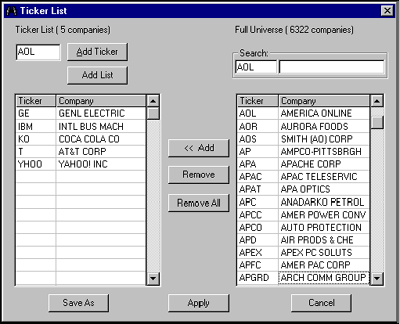
Ticker List, follow these steps: 1. From the
Portfolio menu, select the Enter New Ticker List
command or click the New Ticker List button. The
Ticker List dialog box will appear. Ticker List dialog
box. 2. In the Ticker box,
type a ticker symbol. 3. Click Add
Ticker or press Enter. 4. To view the list of
all available companies, use the scroll bar to browse the
Full Universe selection. Select a company from the list
and click << Add. 5. After all of your
tickers have been entered, click Save As and then
Apply to make the newly created Ticker List
active.