|
To begin the screening
process, follow these steps:
|
|
1. From the
list of Categories, choose a category,
subcategory and then highlight a data item from
the list of Items categories.
|
|

|
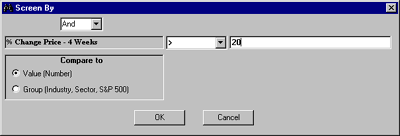
2. Double
click the selected database item or click the
Screen by Database Item button. The
Screen By dialog box will
appear.
|
|
|
3. At the
Screen By menu, enter the parameters for
your screen. You can compare the selected item
to a Value (any number) or a Group. If you are
comparing to a specific Value, enter that number
into the value data entry box. When you are
comparing to a Group (Industry, Sector or
S&P 500), select it from the pull-down menu
and then specify the method of aggregation
(mean, median).
|
|
|
4. Next,
choose an operator from the operators pull-down
menu and click OK.
|
|
|
5. The
screening item will appear in the Screening
Criteria table (below the Categories and
Items section). Each screening item will also be
added to the Report Definition table.
|
|
|
6. To run the
screen, click the Run Query button.
|
Tip: To add a screening item with the
mouse, highlight that item in the Screen's Items list
section and click your right mouse button. Select the
Screen by Database Item command from the
menu.
Using Historical Search Option
in Screening
When an item in a
database has more then one period associated with it, the
Screen By dialog box has a special check box:
Historical Search. The Historical Search option allows
you to screen on several data periods. In addition, you
can specify whether you want the specific conditions to
be met in Every or Any time period.
More:
Example
Using
Historical Search Option
|