|
Alert Parameters: Selecting Portfolio |
Alert Reports' default
portfolio is Myportf.txt. You can select a new portfolio
by following these steps: 1. From the
Alert Parameters section, click the
Portfolio radio button. 2. At the
Portfolio selection section, click the
Browse button. 3. The Open
Portfolio dialog box will appear. In the
Look in box, click the drive and folder
that contains the file. 4. In the
folder list, double-click folders until you open
the folder that contains the file you
want. 5.
Double-click the portfolio file you want to open
or click Open. To specify a new
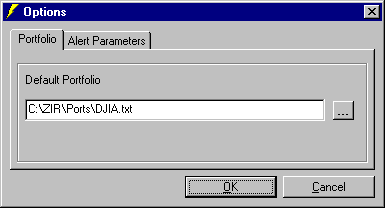
default portfolio, follow these steps: 1. From the
Tools menu, click Options. The Options
dialog box will appear. 2. Click
Portfolio tab. The current Default
Portfolio will be shown. 3. At the
Default Portfolio section, click Browse.
4. The
Default Portfolio dialog box will appear.
In the Look in box, click the drive and
folder that contains the file. 5. In the
folder list, double-click folders until you open
the folder that contains the file you
want. 6.
Double-click the portfolio file you want to open
or click Open. 7. Click
OK.

If you want to view Top/Bottom companies in your
portfolio (based on the specific report criteria), mark
the Screening check box and select Top/Bottom
number.
Back | Alerts | Help Home Page