|
Printing Zacks Company Snapshot Reports for Active Tickers |
To print Snapshot
reports for all tickers that passed your screen, follow
these steps: 2. Return to the
main menu, and click Snapshot. 3. At the Company
Reports menu, click Print Snapshot for Active
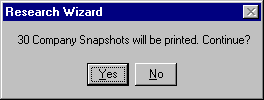
Tickers. 4. The message will
appear stating how many company reports will be
printed. Select Yes to print them or
No to cancel. To print Snapshot
reports for a portfolio, follow these steps: 2. At the Company
Reports menu, click Print Snapshot for Active
Tickers. 3. The message will
appear stating how many company reports will be
printed. Select Yes to print them or
No to cancel.
1. After
specifying screening criteria, click Run Query
and get the desired universe.
1. Select a
Ticker List (its name will be displayed in the
Screening Criteria table).