Sometimes before
defining your screening criteria, you want to have a
visual impression of how the companies in the full
universe are distributed, making it easier to determine
appropriate operators and values for screening.
To view single item
statistics, follow these steps: In addition, the
total number of companies in the database and the
number of N/A values for the item are
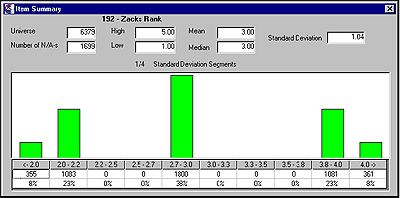
noted. Item Summary
display. Item Summary Histogram
Table Below the item's
statistics, the item's histogram table is shown. This
display groups the values into equal ranges around the
item's mean value. The range is calculated as the
fraction of the Standard Deviation for the selected item.
The fraction of the Standard Deviation used will depend
on the Standard Deviation value: the bigger the value,
the bigger the fraction that is used. In addition, each
bar represents the number of companies within a certain
range of values of the specified item, allowing a quick
graphical look at how the companies in the universe are
distributed. The item Summary
Histogram Table has 3 rows. The first row contains ranges
of Standard Deviation Segments fractions on the left and
on the right side of the mean. The second row contains
the number of companies falling within the particular
range. The third row shows the percentage of companies
within the particular range. Tip: Another way
to access the Item Summary option is to follow these
steps: